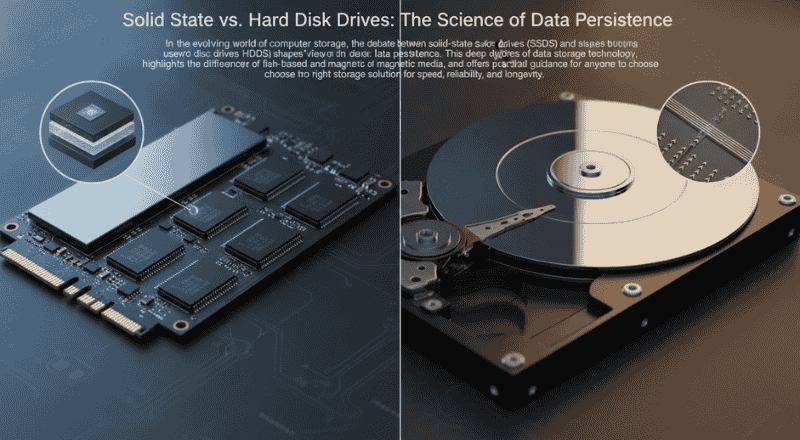
Solid State vs. Hard Disk Drives: The Science of Data Persistence
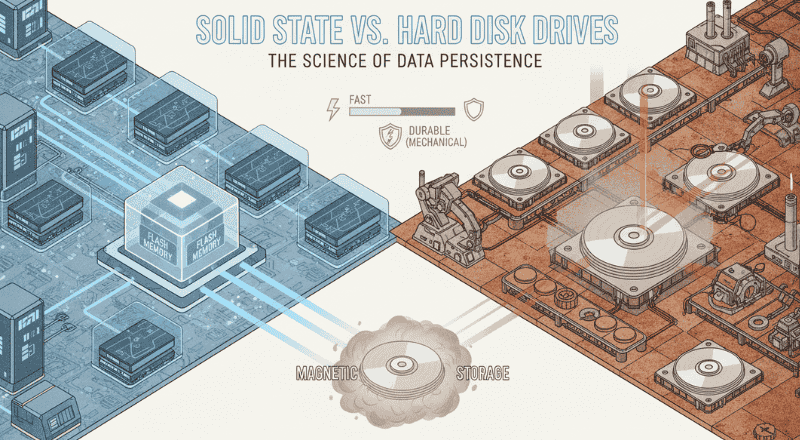
In the evolving world of computer storage, the debate between solid-state drives (SSDs) and hard disc drives (HDDs) shapes buying decisions and users’ views on data persistence. This deep dive explores the fundamentals of data storage technology, highlights the differences between flash‑based and magnetic media, and offers practical guidance for anyone looking to choose the right storage solution for speed, reliability, and longevity.
Understanding Data Storage Fundamentals
At the heart of every computer, tablet, or server lies a storage medium that remembers everything—from the operating system to the latest family photo. Data storage technology is built on two basic principles: how bits are encoded and how they are retained over time.
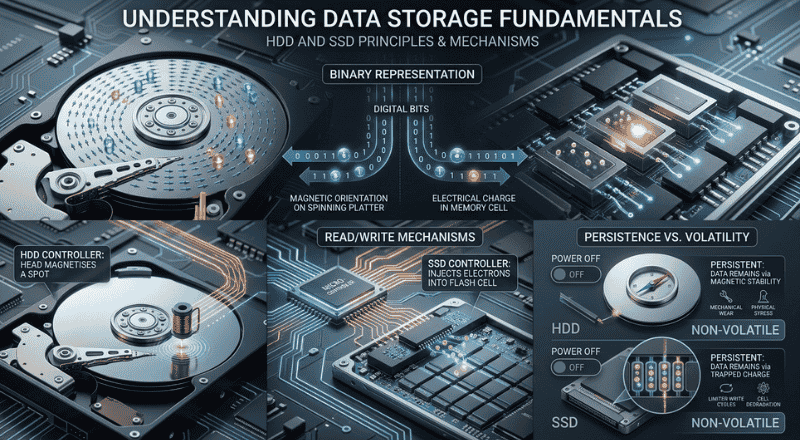
- Binary Representation – All digital information is reduced to a series of 0s and 1s. In a storage device, each bit must be signified physically, whether by a magnetic orientation on a spinning platter or by an electrical charge trapped in a memory cell.
- Read/Write Mechanisms – The device’s controller translates user commands into physical actions. A write head magnetises a spot on a hard disc. In contrast, an SSD’s controller injects electrons into a flash cell.
- Persistence vs. Volatility – Persistence means that data remain intact without power. Both SSDs and HDDs are non‑volatile, but the way they retain data differs dramatically. Which influences storage reliability and drive durability.
Understanding these fundamentals provides a solid foundation for comparing SSD and HDD performance beyond marketing hype.
Mechanical vs Flash Memory
Hard Disk Drive (HDD): The Magnetic Workhorse
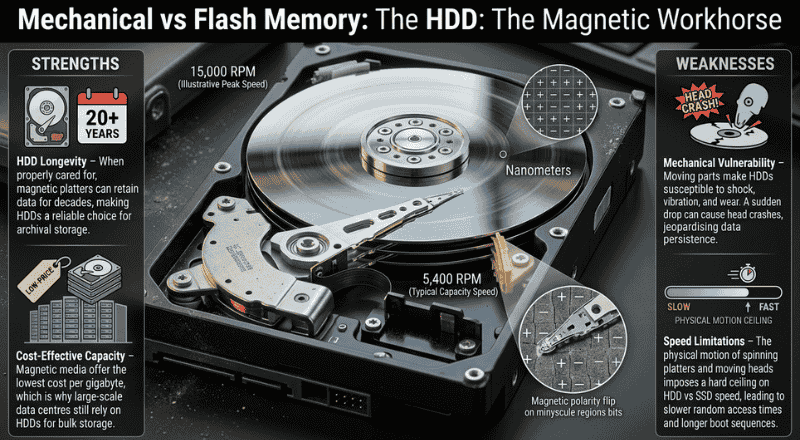
A hard disc drive is a classic example of magnetic storage. Inside every HDD, one or more polished aluminium or glass platters rotate at speeds between 5,400 RPM and 15,000 RPM. Tiny read/write heads float just nanometres above the surface, flipping the magnetic polarity of minuscule regions to store bits.
Strengths
- HDD Longevity – When properly cared for, magnetic platters can retain data for decades, making HDDs a reliable choice for archival storage.
- Cost‑Effective Capacity – Magnetic media offer the lowest cost per gigabyte, which is why large‑scale data centres still rely on HDDs for bulk storage.
Weaknesses
- Mechanical Vulnerability – Moving parts make HDDs susceptible to shock, vibration, and wear. A sudden drop can cause head crashes, jeopardising data persistence.
- Speed Limitations – The physical motion of spinning platters and moving heads imposes a hard ceiling on SSD vs HDD speed, leading to slower random access times and longer boot sequences.
Solid State Drive (SSD): The Flash Frontier
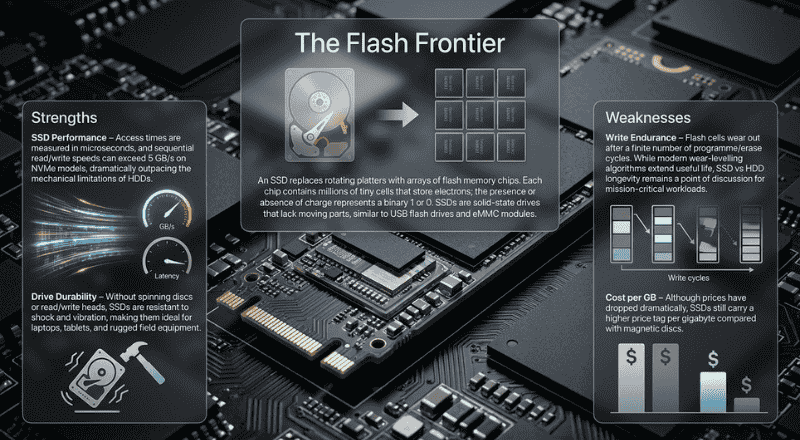
An SSD replaces rotating platters with arrays of flash memory chips. Each chip contains millions of tiny cells that store electrons; the presence or absence of charge represents a binary 1 or 0. SSDs are solid-state drives that lack moving parts, similar to USB flash drives and eMMC modules.
Strengths
- SSD Performance – Access times are measured in microseconds, and sequential read/write speeds can exceed 5 GB/s on NVMe models, dramatically outpacing the mechanical limitations of HDDs.
- Drive Durability – Without spinning discs or read/write heads, SSDs are resistant to shock and vibration, making them ideal for laptops, tablets, and rugged field equipment.
Weaknesses
Write Endurance – Flash cells wear out after a finite number of programme/erase cycles. While modern wear‑levelling algorithms extend useful life, SSD vs HDD longevity remains a point of discussion for mission‑critical workloads.
Cost per GB – Although prices have dropped dramatically, SSDs still carry a higher price tag per gigabyte compared with magnetic discs.
Comparing SSD and HDD Performance
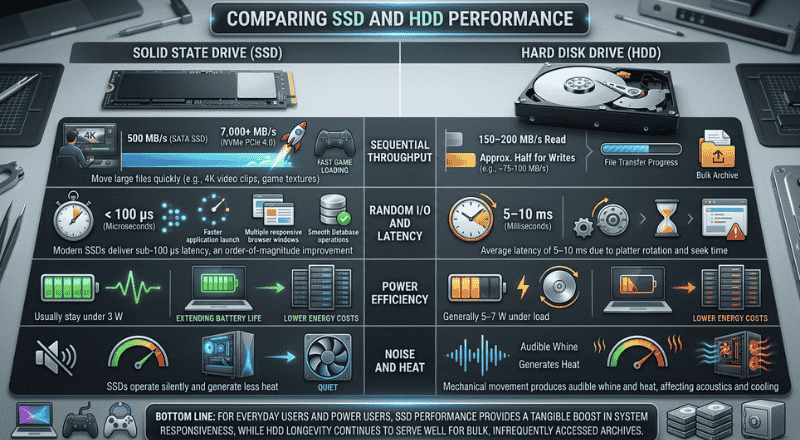
When evaluating storage media performance, several metrics consistently surface: sequential throughput, random I/O, latency, and power consumption. Below, each metric is unpacked with concrete examples that illustrate why many users are opting for SSDs despite the higher price.
- Sequential Throughput
HDDs: A 7200 RPM SATA drive typically delivers 150–200 MB/s read and about half that for writes.
SSDs: SATA SSDs hover around 500 MB/s, while NVMe PCIe 4.0 models push beyond 7,000 MB/s.
The ability to move large files—e.g., 4K video clips or game textures—quickly makes SSD vs HDD speed a decisive factor for content creators and gamers.
- Random I/O and Latency
Random access is where SSDs truly shine. A typical HDD has an average latency of 5–10 ms due to platter rotation and seek time. Modern SSDs deliver sub‑100 µs latency, an order‑of‑magnitude improvement that translates into faster application launches, smoother multitasking, and more responsive databases.
- Power Efficiency
Because magnetic platters must spin continuously, HDDs consume more power—generally 5–7 W under load. SSDs, especially those using the low‑power NVMe or SATA standards, usually stay under 3 W, extending battery life on laptops and lowering data‑centre energy costs.
- Noise and Heat
Mechanical movement in HDDs produces audible whine and heat, which can affect system acoustics and cooling requirements. SSDs operate silently and generate less heat, simplifying chassis design and improving overall system stability.
Bottom line: For everyday users and power users alike, SSD performance provides a tangible boost in system responsiveness, while HDD longevity continues to serve well for bulk, infrequently accessed archives.
Evaluating Data Persistence and Reliability
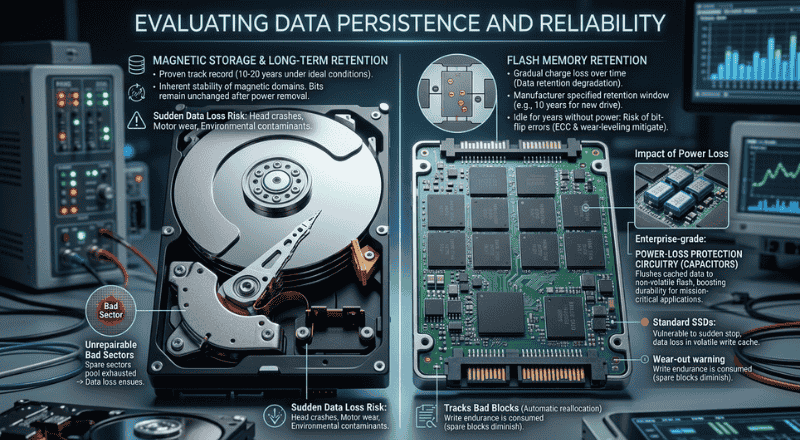
Data persistence is more than just “Will the drive keep my files?” It includes the ability to store information for years, withstand sudden power outages, and endure physical damage. Let’s examine how SSDs and HDDs stack up in terms of storage reliability.
Magnetic Storage and Long‑Term Retention
HDDs have a proven track record of preserving data for 10–20 years under ideal conditions. The magnetic domains on the platter are inherently stable, and even after power is removed, the bits remain unchanged. However, factors such as head crashes, motor wear, and environmental contaminants can lead to sudden data loss.
Flash Memory Retention
Flash cells, especially those based on Multi‑Level Cell (MLC) or Triple‑Level Cell (TLC) technologies, gradually lose charge over time—a phenomenon known as data retention degradation. Manufacturers specify a retention window (e.g., 10 years for a brand‑new drive at low write counts). In practice, if an SSD sits idle for many years without power, the risk of bit‑flip errors grows, although error‑correcting code (ECC) and wear‑levelling mitigate this for typical use.
Impact of Power Loss
Both SSDs and HDDs are vulnerable to abrupt power loss, but the failure modes differ. An HDD can experience a sudden stop of the spindle, causing head‑parking failures, while an SSD may lose data in its volatile write cache if it lacks power‑loss protection circuitry. Enterprise‑grade SSDs incorporate capacitors to flush cached data to non‑volatile flash, boosting drive durability for mission‑critical applications.
Error Rates and Bad Sectors
- HDDs can develop bad sectors that become unrepairable over time. Modern drives include spare sectors that the firmware remaps, but once the pool is exhausted, data loss ensues.
- SSDs track bad blocks at the firmware level, automatically reallocating them without user intervention. However, as write endurance is consumed, the pool of spare blocks diminishes, eventually triggering wear-out warnings.
Overall, data persistence is excellent on both platforms when they are correctly maintained, but the failure mechanisms dictate different preventive strategies.
Factors Influencing Drive Longevity
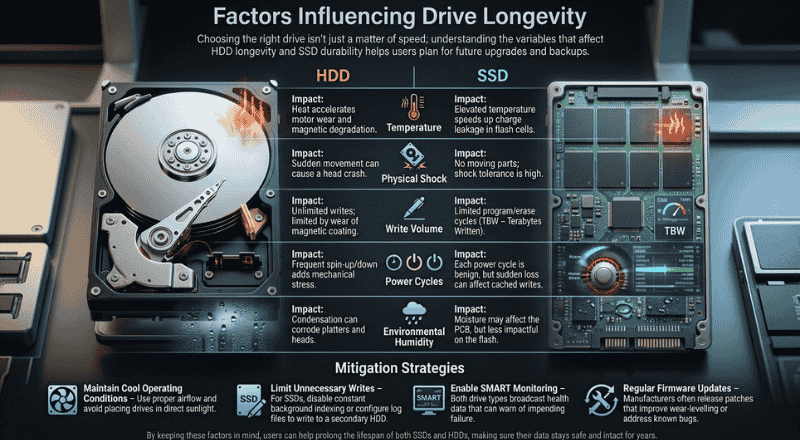
Choosing the right drive isn’t just a matter of speed; understanding the variables that affect HDD longevity and SSD durability helps users plan for future upgrades and backups.
| Factor | HDD Impact | SSD Impact |
| Temperature: | Heat accelerates motor wear and magnetic degradation. | Elevated temperature speeds up charge leakage in flash cells. |
| Physical Shock: | Sudden movement can cause a head crash. | No moving parts; shock tolerance is high. |
| Write Volume: | Unlimited writes; limited by wear of magnetic coating. | Limited program/erase cycles (TBW – Terabytes Written). |
| Power Cycles | Frequent spin-up/down adds mechanical stress | Each power cycle is benign, but sudden loss can affect cached writes. |
| Environmental Humidity: | Condensation can corrode platters and heads. | Moisture may affect the PCB but is less impactful on the flash. |
Mitigation Strategies
- Maintain Cool Operating Conditions – Use proper airflow and avoid placing drives in direct sunlight.
- Limit Unnecessary Writes – For SSDs, disable constant background indexing or configure log files to write to a secondary HDD.
- Enable SMART Monitoring – Both drive types broadcast health data that can warn of impending failure.
- Regular Firmware Updates – Manufacturers often release patches that improve wear‑levelling or address known bugs.
By keeping these factors in mind, users can help prolong the lifespan of both SSDs and HDDs, making sure their data stays safe and intact for years.
Choosing the Right Storage for Your Needs
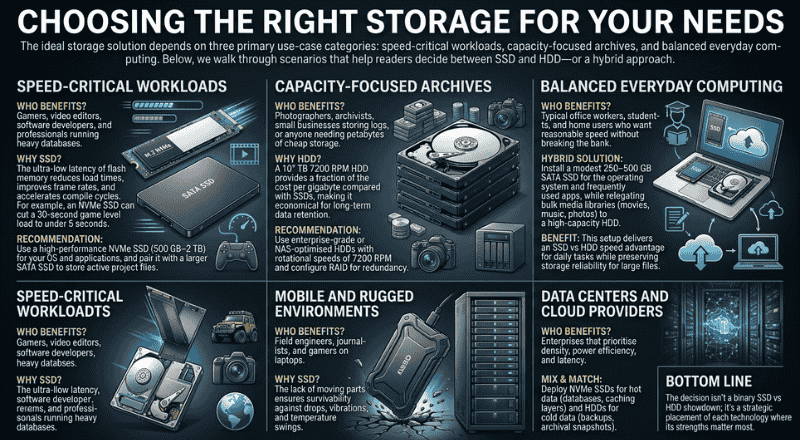
The ideal storage solution depends on three primary use‑case categories: speed‑critical workloads, capacity‑focused archives, and balanced everyday computing. Below, we walk through scenarios that help readers decide between SSD and HDD—or a hybrid approach.
-
Speed‑Critical Workloads
Who benefits? Gamers, video editors, software developers, and professionals running heavy databases.
Why SSD? The ultra‑low latency of flash memory reduces load times, improves frame rates, and accelerates compile cycles. For example, an NVMe SSD can cut a 30‑second game level load to under 5 seconds.
For a smooth and efficient setup, use a high‑performance NVMe SSD (500 GB–2 TB) for your OS and applications, and pair it with a larger SATA SSD to store active project files.
-
Capacity‑Focused Archives
Who benefits? Photographers, archivists, small businesses storing logs, or anyone needing petabytes of cheap storage.
Why HDD? A 10 TB 7200 RPM HDD provides a fraction of the cost per gigabyte compared with SSDs, making it economical for long‑term data retention.
Recommendation: Use enterprise‑grade or NAS‑optimised HDDs with rotational speeds of 7200 RPM and configure RAID for redundancy.
-
Balanced Everyday Computing
Who benefits? Typical office workers, students, and home users who want reasonable speed without breaking the bank.
Hybrid Solution: Install a modest 250–500 GB SATA SSD for the operating system and frequently used apps, while relegating bulk media libraries (movies, music, photos) to a high‑capacity HDD.
Benefit: This setup delivers an SSD vs HDD speed advantage for daily tasks while preserving storage reliability for large files.
-
Mobile and Rugged Environments
Who benefits? Field engineers, journalists, and gamers on laptops.
Why SSD? The lack of moving parts ensures survivability against drops, vibrations, and temperature swings.
-
Data Centers and Cloud Providers
Who benefits? Enterprises that prioritise density, power efficiency, and latency.
Mix & Match: Deploy NVMe SSDs for hot data (databases, caching layers) and HDDs for cold data (backups, archival snapshots).
Bottom line: The decision isn’t a binary SSD vs HDD showdown; it’s a strategic placement of each technology where its strengths matter most.
Best Practices for Data Recovery and Maintenance
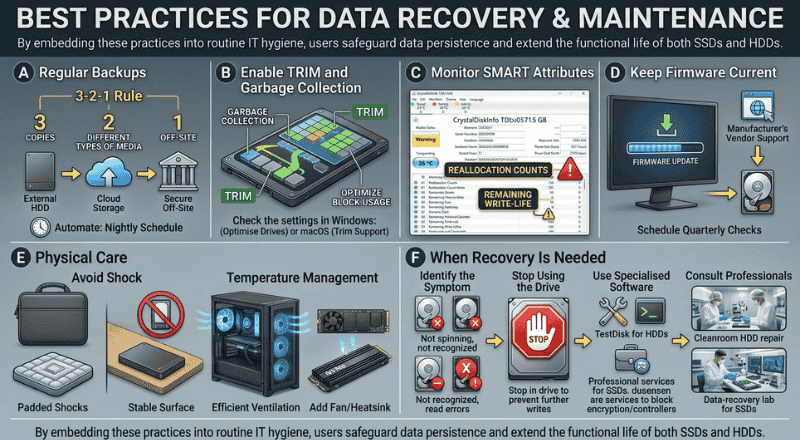 Even the most reliable drive can encounter trouble. Implementing proactive maintenance and having a solid data recovery plan protects against unexpected failures.
A. Regular Backups
- 3‑2‑1 Rule: Ensure that you maintain three copies of your data on two different types of media, with one copy securely stored off-site.
- Automate: Use software that backs up critical folders to an external HDD or cloud storage on a nightly schedule.
B. Enable TRIM and Garbage Collection
For SSDs, TRIM informs the drive which blocks are no longer in use, allowing efficient garbage collection and prolonging lifespan. Modern operating systems enable TRIM by default, but double‑check the setting in Windows (“Optimise Drives”) or macOS (“Trim Support”).
C. Monitor SMART Attributes
Both SSDs and HDDs expose Self‑Monitoring, Analysis and Reporting Technology (SMART) data. Tools like CrystalDiskInfo or built‑in BIOS utilities can flag rising reallocation counts or decreasing remaining write‑life indicators.
D. Keep Firmware Current
Manufacturers occasionally release firmware updates that fix bugs that can cause premature wear or data loss. Schedule quarterly checks on the vendor’s support page.
E. Physical Care
- Avoid Shock: Transport laptops with padded cases and keep external drives on stable surfaces.
- Temperature Management: Don’t block ventilation; consider adding a fan or heat sink for high‑performance NVMe drives.
F. When Recovery Is Needed
- Identify the Symptom – Is the drive not spinning, not being recognised, or returning read errors?
- Stop Using the Drive – Further writes can overwrite recoverable sectors.
- Use Specialised Software – For HDDs, utilities like TestDisk can rebuild partition tables. For SSDs, professional services may be required because flash controllers can encrypt data at the block level.
- Consult Professionals – If the data is mission‑critical, a cleanroom HDD repair or a data‑recovery lab for SSDs can increase the odds of successful retrieval.
By embedding these practices into routine IT hygiene, users safeguard data persistence and extend the functional life of both SSDs and HDDs.
Conclusion
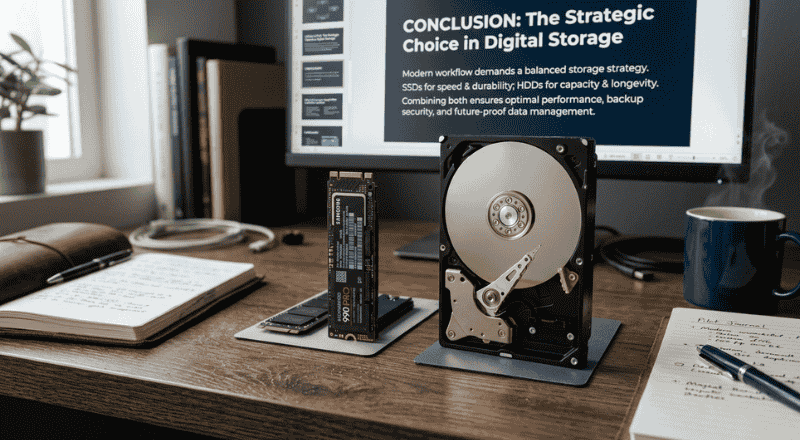
The landscape of digital storage science continues to evolve, yet the core question—solid-state vs. hard-disc drives—remains rooted in a balance between speed, capacity, and durability. SSDs deliver astonishing performance, low power draw, and robust drive durability, making them the go‑to choice for performance‑driven environments and mobile computing. HDDs, with their proven longevity and cost‑effective density, excel in archival and bulk‑storage scenarios where sheer capacity matters more than raw speed.
For the modern user, the smartest approach is rarely “one or the other”. By understanding the underlying mechanisms of flash memory versus magnetic storage, evaluating real‑world metrics such as SSD vs HDD speed, and applying best‑practice maintenance, anyone can craft a storage strategy that aligns with their workflow, budget, and data‑safety goals.
Whether upgrading a home PC, provisioning a data centre rack, or simply deciding where to keep cherished family photos, the principles outlined here empower readers to make informed, future-proof choices. The result? Faster boots, smoother multitasking, and, most importantly, confidence that the data stored today will remain intact and accessible tomorrow.
Stay curious, stay backed up, and let the right storage drive power your digital life.
Click here: Signals: The Passive Signal Revolution in Asset Tracking

Elevate your lifestyle with our curated content on technology, sports, travel, health, and fashion. Stay ahead of the trends and make informed choices.