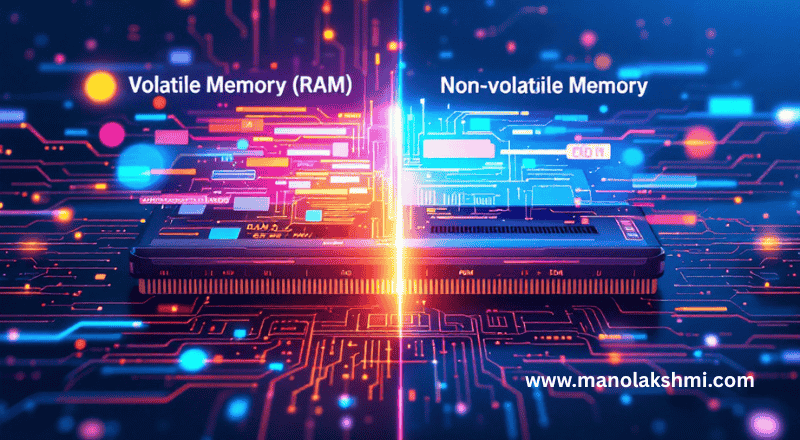
Understanding Computer Memory: Volatile vs. Non-Volatile
Have you ever wondered how your computer seemingly remembers everything you’re doing in an instant but then forgets it all when you power it off? Or how it magically knows how to start up every single time? It’s all thanks to a fascinating duo of computer memory types: volatile memory and non-volatile memory. These aren’t just technical terms; they’re the fundamental building blocks that allow your digital world to function, manage information, and bring your ideas to life.
Understanding how RAM vs ROM manages information is like peering into the very core of your device. It demystifies the magic and helps you appreciate the intricate engineering behind every click, every game, and every document. So, let’s embark on an encouraging journey together to unravel the mysteries of how computer memory works, breaking down complex concepts into clear, digestible insights. By the end, you’ll have a solid grasp of these essential computer hardware basics and feel more confident in your understanding of the digital realm!
Understanding Computer Memory

At its heart, a computer is a machine designed to process and store information. But not all information is treated equally, nor is it stored in the same way. Think of your computer’s memory as different types of workspaces, each with a specific purpose and set of rules. Some workspaces are designed for quick, temporary tasks, while others are built for long-term storage and critical instructions.
This fundamental division helps your computer operate efficiently. The Central Processing Unit (CPU), often called the “brain” of the computer, constantly needs data and instructions to perform its calculations. This is where primary storage comes into play. Primary storage, which includes both volatile and non-volatile memory, is directly accessible by the CPU. It’s the swift, immediate realm where the CPU fetches everything it needs to keep your applications running smoothly.
Imagine your brain: it has its short-term memory (what you’re thinking about right now) and its long-term memory (knowledge, skills, core understanding). Computer memory operates on a similar principle. This intricate system is what enables your favourite applications to load quickly, your operating system to function, and your files to be saved securely. Let’s dive deeper into the two main categories that make this possible: volatile and non-volatile memory. Understanding these core concepts is a brilliant step toward truly grasping data storage explained within modern computing.
What is Volatile Memory?

Let’s begin with volatile memory, a truly ingenious component that defines much of your everyday computing experience. The term “volatile” might sound a bit intimidating, but it simply means that this type of memory requires power to maintain the stored information. As soon as the power supply is cut off—whether you shut down your computer, it crashes, or there’s a power outage—all the data held in volatile memory is lost. Poof! It vanishes into thin air.
Think of volatile memory like a whiteboard in a busy meeting room. During the meeting, ideas are jotted down, calculations are made, and plans are outlined. Everyone can see and interact with this information instantly. It’s incredibly fast and efficient for active collaboration. However, once the meeting is over, the whiteboard is erased, ready for the next session. The information wasn’t meant to be kept permanently; it was for immediate, active use.
The primary and most common example of volatile memory is random access memory (RAM). RAM is like your computer’s short-term memory, where it keeps data it’s actively using. It’s where your operating system, all the applications you’re currently running, and the data they are actively using (like the document you’re typing or the game you’re playing) reside temporarily. The CPU constantly reads from and writes to RAM because it’s incredibly fast, allowing for quick access to information needed for immediate processing.
The brilliance of volatile memory lies in its speed. It’s designed for rapid data access and manipulation, making it ideal for the dynamic processes of a computer. While losing data upon power loss might seem like a drawback, it’s a deliberate design choice that optimises performance for current tasks. Without memory volatility, your computer couldn’t juggle multiple applications or respond to your commands as quickly as it does. It’s a testament to clever engineering, providing a lightning-fast workspace for your computer’s daily operations.
What is Non-Volatile Memory?

Now, let’s turn our attention to the steadfast partner of volatile memory: non-volatile memory. True to its name, “non-volatile” means that this type of memory retains its stored information even when the power is turned off. It’s the permanent record keeper, ensuring that your computer can remember critical instructions and your precious files long after you’ve pressed the power button.
Imagine non-volatile memory as a bookshelf filled with reference books or a locked filing cabinet. Once information is placed there, it stays put, accessible whenever you need it, regardless of whether the lights are on or off. This type of memory is crucial for everything that needs to persist beyond a single computing session.
The most iconic example of non-volatile memory in the context of primary storage is read-only memory (ROM). ROM contains essential instructions that tell your computer how to start up, a process known as booting. Without ROM, your computer wouldn’t even know enough to begin loading the operating system from your hard drive or SSD. It’s like the instruction manual embedded directly into the machine, always there, always ready to guide.
Beyond ROM, many other forms of digital storage systems fall under the non-volatile umbrella, such as Hard Disc Drives (HDDs), Solid State Drives (SSDs), and USB flash drives. These are where your operating system, software applications, documents, photos, and videos are permanently stored. While they are technically secondary storage (meaning not directly accessed byte-for-byte by the CPU like RAM), they are fundamental examples of how information endures without a constant power supply.
The very essence of non-volatile memory ensures the stability and usability of our devices. It allows us to save our work, install complex software, and trust that our operating system will greet us every time we power on. This enduring nature, free from the constraints of memory volatility, makes it indispensable for building robust and reliable computing systems. It’s the silent guardian of your digital life, always preserving and ready when you are.
RAM vs ROM Key Differences
To truly appreciate the genius of how computer memory works, it’s crucial to understand the distinct roles and characteristics of RAM vs. ROM. While both are vital components of your computer’s primary storage, they serve fundamentally different purposes due to their differing memory volatility. Let’s break down the difference between RAM and ROM into clear, comparable points:
Volatility:
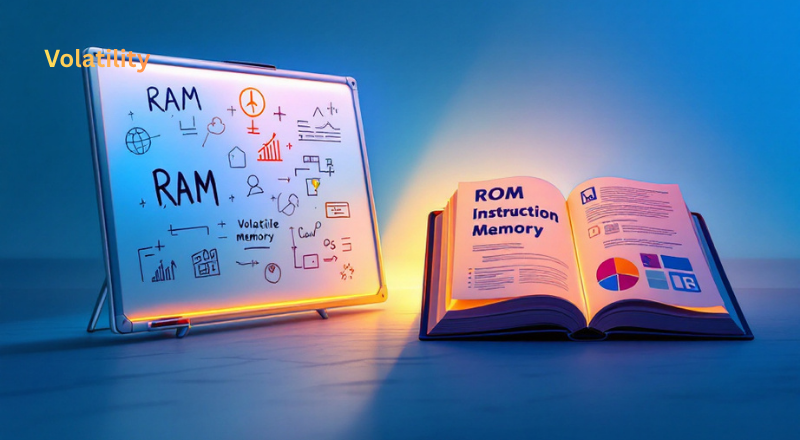
RAM (Volatile Memory): Requires a constant power supply to retain data. When the power is off or interrupted, all data stored in RAM is lost. It’s like a temporary whiteboard.
ROM (Non-Volatile Memory): Retains its data even when the power is turned off. The information is permanently embedded and persists indefinitely. It’s like a printed instruction manual.
Purpose:
RAM Function: Serves as the computer’s primary active workspace or “short-term memory”. It temporarily stores the operating system, applications currently running, and the data actively being used by those programmes. Its goal is to provide rapid access to the CPU.
ROM Function: Stores critical, permanent instructions needed to start up the computer (known as the BIOS or UEFI firmware). These instructions tell the CPU how to load the operating system and how to interact with essential hardware components. It’s fundamental for the bootstrap process.
Speed:
RAM: Generally much faster than ROM. It’s optimised for incredibly quick read and write operations, which is essential for the CPU’s real-time processing needs.
ROM: Traditionally slower than RAM for reading data, and often not designed for writing new data by the user (or it’s a very slow, specific process if it can be written). Its priority is persistence and reliability, not speed.
Writable/Rewritable Capabilities:

RAM: Is fully readable and writable. The CPU constantly writes new data to it and reads existing data from it as programs execute.
ROM: Traditionally, it was “read-only”. While modern forms like Flash ROM can be updated (e.g., for firmware updates), this is a deliberate, infrequent, and often slower process, not for daily data manipulation.
Capacity:
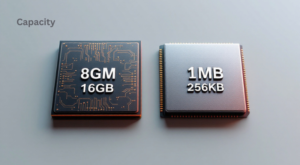
RAM: Typically has a larger capacity than ROM in a given system (e.g., 8GB, 16GB, 32GB or more). This allows for more applications and data to be actively held for processing.
ROM: Usually has a much smaller capacity (e.g., a few megabytes or even kilobytes), as it only needs to store the essential boot instructions.
Cost:
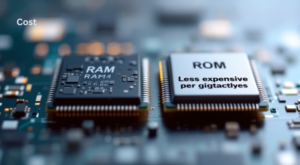
RAM: Generally more expensive per gigabyte due to its advanced technology designed for speed and rapid read/write cycles.
ROM: Typically less expensive per gigabyte for its specialised, often static, instruction storage.
These distinctions highlight how volatile memory (RAM) and non-volatile memory (ROM) are not competitors but rather synergistic components. They each play a unique and indispensable role in the grand orchestra that is your computer system, ensuring both blazing-fast operation and reliable startup.
How RAM Functions
Let’s take a closer look at Random Access Memory (RAM), often simply called “memory”. Its dynamic and rapid nature is what allows your computer to feel responsive and agile. Understanding RAM function is key to appreciating your computer’s processing power.
When you power on your computer, a small set of instructions from the ROM (which we’ll explore next!) tells the CPU how to begin loading the operating system. A significant portion of that operating system, along with the drivers for your hardware, is then loaded from your persistent storage (like an SSD or HDD) directly into RAM. This is why booting up takes a moment – your system is essentially setting up its active workspace.
Once the operating system is in RAM, you’re ready to go! When you launch an application, say a web browser or a word processor, the necessary parts of that programme are also loaded from your storage device into RAM. This allows the CPU to access the program’s instructions and data almost instantaneously. Without RAM, every time the CPU needed an instruction, it would have to fetch it from the much slower storage drive, leading to incredibly sluggish performance.
How RAM Functions
The “Random Access” in RAM is a crucial characteristic. It means that the CPU can access any piece of data stored in RAM directly and quickly, regardless of where it’s physically located. Think of it like a library where every book has its own unique address, and you can instantly go to any address without having to scroll through all the books before it. This direct accessibility is what makes RAM so incredibly fast for the CPU.
RAM function is not just about holding program instructions; it also actively stores the data you’re working with. Typing in a document? That text is in RAM. Editing a photo? The image data is in RAM. Browsing a website? The page content, images, and scripts are all cached in RAM. This temporary storage allows for real-time changes and rapid interaction.
The amount of RAM your computer has directly impacts its multitasking capabilities and overall performance for demanding applications. More RAM means your computer can hold more programs and data in its active workspace simultaneously. If you’re someone who likes to have many browser tabs open, run multiple applications, or engage in memory-intensive tasks like video editing or gaming, ample RAM is absolutely essential for a smooth and frustration-free experience. When RAM fills up, your computer starts using a slower part of your permanent storage (virtual memory), which significantly degrades performance.
In essence, RAM is the vibrant, ever-changing stage where all the crucial actions of your computer unfold. It’s the engine of immediate responsiveness, making your digital interactions feel seamless and powerful. It perfectly embodies the role of volatile memory—fast, dynamic, and always ready for the next task.
The Role of ROM in Systems
While RAM is the bustling temporary workspace, read-only memory (ROM) plays a quiet yet profoundly critical role. Without it, your computer literally wouldn’t know how to begin its journey from a powered-off state to a fully operational system. Understanding the ROM function is to understand the very foundations of your computer’s existence.
The primary and most vital function of ROM is to store the firmware that your computer needs to start up. This firmware is often referred to as the BIOS (Basic Input/Output System) or, in newer systems, UEFI (Unified Extensible Firmware Interface). When you press the power button on your computer, the CPU first looks to the ROM for instructions.
Here’s what typically happens thanks to ROM:
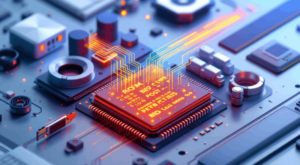
- Power-On Self-Test (POST): The ROM’s firmware initiates a POST, which checks if all essential hardware components (like RAM, keyboard, graphics card, etc.) are present and functioning correctly. If there’s a serious issue, the BIOS might emit a series of beeps to alert you.
- Hardware Initialisation: The ROM initialises fundamental hardware components, setting them up so that the CPU can communicate with them.
- Boot Device Selection: The ROM determines which storage device (e.g., your SSD or HDD) contains the operating system. It then hands over control to the operating system’s boot loader on that device.
From this point, the operating system takes over, and much of the action shifts to RAM. But the ROM’s job was fundamental: it provided the initial spark, the very first set of instructions that brought your computer to life. This makes ROM an indispensable part of computer hardware basics.
While its name implies “read-only”, modern ROM variations aren’t always strictly immutable. Here are a few types:
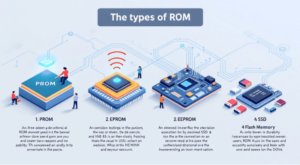
- PROM (Programmable Read-Only Memory): Can be written to once after manufacturing, typically by the user.
- EPROM (Erasable Programmable Read-Only Memory): Can be erased using ultraviolet light and then rewritten.
- EEPROM (Electrically Erasable Programmable Read-Only Memory): Can be erased and rewritten electrically, without needing special equipment. This is what you’ll often find in modern BIOS/UEFI chips, allowing for firmware updates.
- Flash Memory: A very common type of EEPROM used in SSDs, USB drives, and even for BIOS/UEFI. It’s truly a versatile form of non-volatile memory.
ROM’s durability makes it ideal for permanently storing critical data, preventing computers from losing startup instructions when powered off. By ensuring system stability, ROM provides a reliable foundation for all software. Its design for unwavering persistence, rather than speed, makes it a cornerstone of digital storage systems.
Choosing the Right Storage Type
When we talk about “choosing the right storage type”, it’s important to clarify that we aren’t choosing between RAM or ROM for a single purpose; they are complementary and non-negotiable components within your primary storage. Every modern computer needs both. However, understanding their individual roles within computer memory types empowers you to make informed decisions about system configuration and upgrades, ultimately shaping your computing experience.
- Optimising for Speed and Responsiveness (RAM):

-
- If you notice your computer slowing down when you run multiple applications, open many browser tabs, or work with large files (like high-resolution images or video projects), you’re likely bottlenecked by your volatile memory (RAM).
- Choosing more RAM (e.g., upgrading from 8GB to 16GB or 32GB) is the “right choice” for improving multitasking, gaming performance, and the overall snappiness of your system. It expands your computer’s active workspace, preventing it from having to constantly swap data to slower storage.
- Ensuring System Stability and Startup (ROM):
-
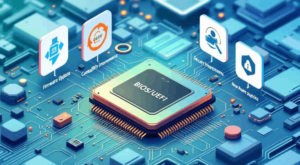
- When it comes to non-volatile memory like ROM (BIOS/UEFI), user “choice” is less about capacity and more about ensuring its integrity. You typically don’t “add” more ROM, but you might update its firmware.
- Keeping your BIOS/UEFI up-to-date (when recommended by the manufacturer) can bring compatibility improvements, security patches, and support for newer hardware. This ensures the foundational ROM function remains robust and secure. This isn’t a “choice” as much as it is good maintenance, making sure your system’s core instructions are always optimised.
Balancing Primary and Secondary Storage (Data Storage Explained):
-
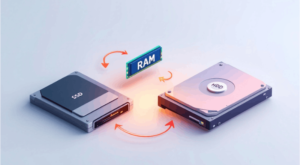
- Understanding RAM and ROM also helps clarify the role of secondary, non-volatile memory like SSDs and HDDs. Your operating system and all your programs are installed on these drives because they are designed for permanent storage.
- Choosing an SSD over an HDD for your operating system and frequently used programs (even though both are non-volatile) dramatically improves system startup times and application loading speeds, as the SSD can transfer data to RAM much faster. Ultimately, digital storage systems are linked: permanent storage speed determines the rate of data transfer into volatile RAM.
In essence, choosing the right storage type is about understanding how these different memory components work together to manage information efficiently. You need sufficient, fast RAM for active tasks, robust and updated ROM for foundational operations, and speedy, capacious non-volatile storage for your permanent data. By appreciating these complementary roles, you can make informed decisions that optimise your computer’s performance for your specific needs, truly harnessing the power of well-chosen computer memory types.
Summary of Memory Volatility
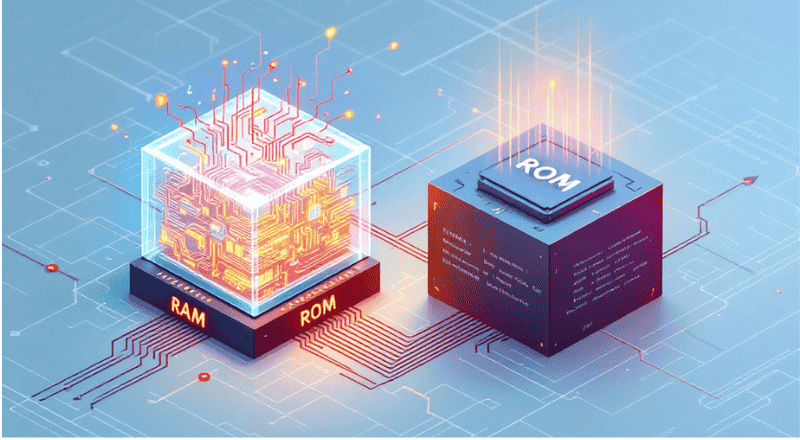
We’ve journeyed through the intricate landscape of computer memory, uncovering the essential roles of volatile memory and non-volatile memory. This fundamental distinction, rooted in memory volatility, is not just a technicality but the very design principle that enables our computers to be both incredibly fast and reliably persistent.
Let’s quickly recap the core insights:
- Volatile Memory (e.g., RAM):
- Requires constant power to retain data.
- Acts as the computer’s high-speed, temporary workspace for active tasks.
- Data disappears when the power goes out.
- Essential for running your operating system and applications and managing active data with lightning speed. The more you have, the smoother your multitasking and demanding applications will run.
Crucial for RAM function and overall system responsiveness.
- Non-Volatile Memory (e.g., ROM):
-
- Retains data even without power.
- Serves as the computer’s permanent storage for critical instructions and long-term data.
- Data persists regardless of power status.
- Essential for providing the initial instructions (BIOS/UEFI) that allow your computer to boot up, a key aspect of ROM function.
- Secondary storage like SSDs and HDDs permanently saves operating systems and files, which is essential for digital storage systems.
The interplay between these two types of memory is a masterclass in engineering efficiency. RAM vs ROM are not in competition but are integral parts of a cohesive system. RAM provides the dynamic, high-speed workspace needed for immediate processing, while ROM ensures the foundational stability and startup sequence. This harmonious collaboration is what makes your computer a powerful and reliable tool.
Understanding the difference between RAM and ROM and memory volatility explains device behaviour. Your computer clears open tabs upon shutdown due to RAM’s volatility, while it relies on non-volatile ROM to start up successfully. This knowledge transforms technical jargon into practical understanding, making you a more informed and confident digital explorer. Keep nurturing this curiosity for computer hardware basics – the world of technology constantly offers new wonders to discover!
Conclusion

Congratulations! You now understand how volatile and non-volatile memory, specifically RAM and ROM, logically power your digital world.
We’ve seen that how computer memory works isn’t a singular process but a brilliant dance between temporary speed and enduring permanence. RAM, with its volatile memory nature, provides the exhilarating, high-speed workspace that makes your applications fly and multitasking a breeze. Meanwhile, ROM, as the steadfast guardian of non-volatile memory, ensures that your system always remembers its core instructions, bringing your computer to life every single time.
Understanding the difference between RAM and ROM and their distinct RAM function and ROM function is more than just learning technical definitions. It’s about gaining a deeper appreciation for the ingenious design behind the devices that shape our modern lives. This knowledge empowers you to make better choices when upgrading your system, troubleshoot minor issues, and simply feel more connected to the technology you use daily.
Keep exploring, keep asking questions, and continue to demystify the digital world around you. Learning computer hardware basics strengthens your foundation, allowing you to maximise technology’s potential. Understanding your computer’s brain is rewarding, and you’ve made encouraging progress today!
Click here to visit our page: Signals: The Passive Signal Revolution in Asset Tracking

Elevate your lifestyle with our curated content on technology, sports, travel, health, and fashion. Stay ahead of the trends and make informed choices.
Great content! Keep up the good work!
1000 thanks